Marble & Stone Textures for Photoshop
Browse 70 free seamless marble & stone textures optimized for Photoshop. Every texture downloads as PNG at 1024px, 2048px, or 4096px — power-of-two sizes that Photoshop handles efficiently with mipmapping and texture compression. All textures tile perfectly with no visible seams.
Marble and stone textures — marble, concrete, cobblestone, asphalt, plaster, and terrazzo — are essential for architectural visualization, environmental design, and any workflow requiring natural hard surfaces. In Photoshop, open the PNG and use Edit > Define Pattern to register it as a reusable fill pattern, or drag it directly into a Smart Object layer for non-destructive tiling. All textures are procedurally generated and released under our royalty-free license — free for personal and commercial projects with no attribution required.
Marble & Stone Textures










Workflow in Photoshop
In Photoshop, open any texture as a Smart Object to preserve the ability to edit the source later without losing quality. For pattern tiling, use Edit > Define Pattern on the texture tile, then apply via Layer Style > Pattern Overlay — this gives you repeat control with opacity and blend mode without needing to duplicate the layer. For web export, save as PNG-8 if the palette is limited (most generator outputs do fine at 256 colours) or PNG-24 for photographic textures. WebP at 85% quality is roughly half the file size with no visible difference.
Quality notes for marble & stone textures
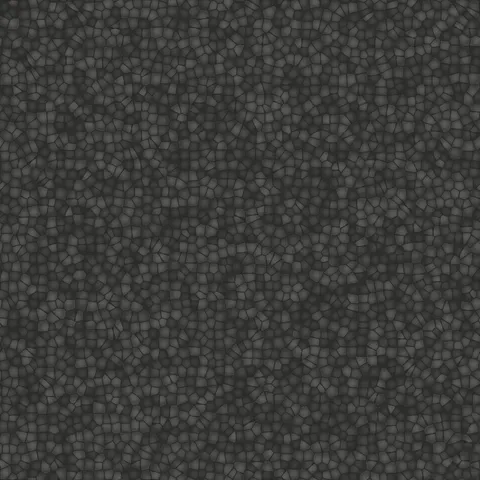
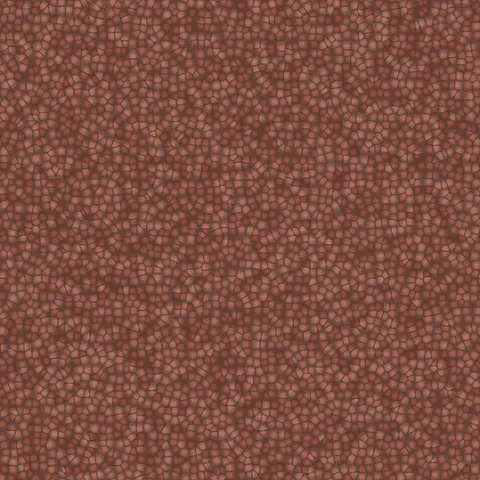
Hard-surface textures (marble, stone, concrete, cobblestone, asphalt, plaster, terrazzo) all share a requirement for accurate scaling. Too-small tiles read as decorative rather than structural; too-large tiles reveal the repeating pattern. Target a UV scale that produces stones roughly 10 to 25 centimetres apart for floor and wall materials. For distant views, higher tile frequencies read cleanly; for close-ups, larger individual stones with more per-tile detail serve better.
Photoshop × Marble & Stone specifics
For marble in Photoshop, import the texture as a Smart Object to preserve editing non-destructively. Apply Gradient Overlay with Multiply blend mode to add colour depth without destroying vein structure. For hero graphics, combine marble with a subtle Linear Gradient overlay in Soft Light mode — this mimics the light falloff seen on real polished stone slabs.