PBR Textures & Normal Maps
Physically-based rendering relies on multiple texture maps working together to simulate how real surfaces interact with light. The foundation of any PBR material is a good diffuse (albedo) map paired with a normal map. Texturize lets you generate both: create a seamless base texture with any of our 50 generators, then run it through the Normal Map Generator to produce a matching normal map automatically.
This two-map approach covers the most impactful channels in any PBR shader. The diffuse map provides color information while the normal map adds surface relief — bumps, grooves, and fine detail that catch light realistically. Together they transform flat geometry into convincing materials like weathered brick, polished marble, or rough concrete.
Every texture is seamless by design, so your PBR materials tile cleanly across any surface. Download at 2048px or 4096px for production-quality results, and use them in Unity, Unreal Engine, Blender, Godot, or any other PBR-capable application. All textures are royalty-free for commercial and personal use.
Best Generators for PBR Materials
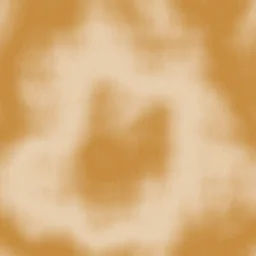
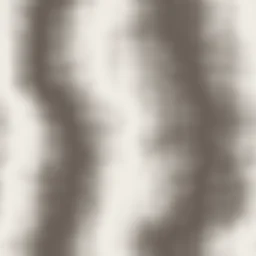
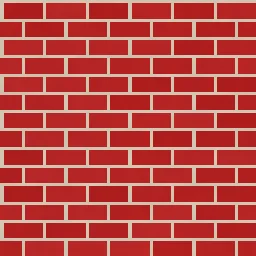
These generators produce textures with natural surface variation that translates well into realistic PBR materials with strong normal map results.

PBR Material Workflow
Generate your base texture (Diffuse / Albedo)
Pick a generator that matches the surface you need — marble for stone floors, metal for steel panels, wood for furniture. Adjust colors, scale, and detail until it looks right. Download as PNG at 2048px or 4096px.
Generate a normal map
Open the Normal Map Generator tool and upload your diffuse texture. Adjust the strength slider to control how pronounced the surface relief appears. Download the result — it will be the same dimensions as your input.
Import both maps into your 3D application
Load the diffuse texture into the Albedo / Base Color channel of your PBR shader. Load the normal map into the Normal Map channel. Make sure the normal map is set to a linear / non-color color space.
Configure material properties
Adjust Roughness, Metallic, and other PBR parameters to match the surface type. For example: metals need high Metallic and low-to-medium Roughness, while concrete needs zero Metallic and high Roughness.
Set tiling and UV mapping
Configure the texture to repeat seamlessly by setting the wrap mode to Repeat and adjusting the UV tiling scale. Since both maps were generated from the same source, they will align perfectly.
Normal Map Generator — the core PBR tool
The Normal Map Generator converts any diffuse texture into a tangent-space normal map. It analyzes the luminance values of your texture to determine surface height, then computes the X, Y, and Z normal directions and encodes them as RGB values. The result is a standard normal map that works in any PBR shader.
Adjust the Strength parameter to control how dramatic the surface relief looks. Low values (0.5–2) produce subtle surface variation suited for smooth materials like polished marble. Higher values (3–8) create more pronounced relief for rough surfaces like brick and concrete.
Open Normal Map GeneratorPBR Workflow Tools
Texture Mixer
Blend two textures with blend modes like Multiply, Screen, Overlay, and more. Adjust opacity and download the result.
Make Seamless
Convert any image into a seamlessly tileable texture. Adjust blend width and preview the 3×3 tiled result.
Normal Map Generator
Generate normal maps from any texture for 3D rendering, game assets, and PBR workflows. Adjust strength and download as PNG.
PBR Map Types Explained
Diffuse / Albedo Map
The base color of the surface without any lighting or shadow information. This is what our texture generators produce directly. It defines the color that the PBR shader uses as input for light calculations.
Normal Map
Encodes surface direction as RGB values. Blue-dominant images that tell the renderer which way each pixel faces, simulating bumps and grooves without extra geometry. Generated from diffuse textures using our Normal Map tool.
Roughness Map
Controls how sharp or diffuse reflections appear on the surface. White areas are rough (diffuse reflections), black areas are smooth (sharp reflections). You can approximate this by desaturating and adjusting levels on your diffuse texture.
Metallic Map
Defines which parts of the surface are metallic (white) vs. non-metallic (black). Most real-world materials are either fully metallic or fully non-metallic, so this map is usually either all white or all black for a given material.
Frequently Asked Questions
What PBR maps can I create with Texturize?
Texturize directly generates diffuse (albedo) maps through the texture generators, and normal maps through the Normal Map Generator tool. For roughness and metallic maps, you can approximate them by desaturating your diffuse texture and adjusting the contrast. The Texture Mixer tool can also help create variations by blending textures with different blend modes.
What resolution should I use for PBR textures?
For production PBR work, 2048x2048 is the most common standard. It provides enough detail for close-up viewing while keeping file sizes manageable. Use 4096x4096 for hero assets, architectural close-ups, or cinematics. For mobile or performance-critical applications, 1024x1024 is a good choice. All Texturize downloads are available in these three power-of-two sizes.
Will the normal map and diffuse map align correctly?
Yes. The Normal Map Generator derives its output directly from the input texture, so every bump and groove in the normal map corresponds exactly to the visual features in the diffuse map. The two textures share the same dimensions and pixel alignment, so they layer perfectly in any PBR shader.
Can I use these PBR textures in Unreal Engine?
Absolutely. The textures work in any application that supports PBR materials, including Unreal Engine, Unity, Blender, Godot, Substance Painter, Cinema 4D, Maya, and 3ds Max. Import the diffuse PNG as the Base Color and the normal map PNG as the Normal input in your material editor.
Build your PBR material library
Generate diffuse textures, create normal maps, and assemble production-ready PBR materials — all free and browser-based.